
Deadline
Use Thinkbox Deadline to distribute renders across render nodes.
These scripts allow you to distribute Baselight and Daylight render tasks. They use FLAPI to submit jobs to the render queue on each worker machine. The workers must be configured as render nodes or have Baselight, Daylight, or bl-render open to process the local render queue.
Installation
Please refer to Deadline Documentation for details on how to setup a Deadline repository.
Add Baselight plugin to repository
Copy all files into <deadline repository>/custom/ (e.g. /opt/Thinkbox/DeadlineRepository10/custom/ ) preserving the directory structure so you have (…/custom/plugins/, …/custom/scripts/, etc). The repository will be able to use these files right away, there is no need to restart.
Install Deadline Client on all Baselight / Daylight machines
You’ll need to install the Deadline client software on any worker machines you want to render AND on any systems you want to submit render jobs from. The Deadline Documentation provides details on installing the client.
For Baselight TWO or X systems install the client on the node (n0). If you want to use the GUI installer you can run it from the host with ssh -X e.g. with the command:
sudo ssh -X n0 /home/filmlight/Downloads/DeadlineClient-10.3.1.4-linux-ax64-installer.run
To submit jobs from Baselight running on a UI host you’ll need to link to Thinkbox files on the node by running this command on n0:
sudo ln -s /.master/var/lib/Thinkbox /netboot/hosts/host0/var/lib/Thinkbox
Install Deadline submission plugin for Baselight / Daylight GUI
Copy the files from the submission/Baselight/ folder to the /vol/.support/scripts/ folder on any Baselight or Daylight systems you want to submit Deadline jobs from. These are FLAPI scripts which add a Render with Deadline option to the Scene menu.
Submitting a render job
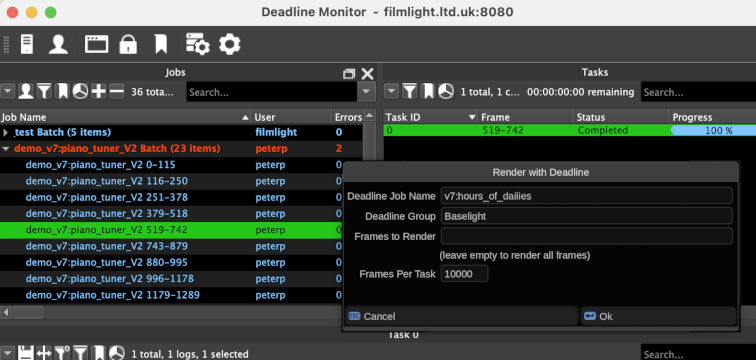
In Baselight or Daylight, open the scene you want to render and configure the deliverables as usual in the Render view. Then select Scene > Render with Deadline. You’ll be presented with a few options:
Deadline Job Name - The name for the job that appears in Deadline Monitor
Deadline Group - If you use Deadline to manage worker nodes for other software, you’ll want to create a group just for machines which have Baselight / Daylight licensed and installed. If you aren’t using Deadline for other software you can leave the group set to “Baselight” as by default Deadline workers will try to render any job regardless of group.
Frames to Render - Leave this blank to render the entire scene (identical to the “All Frames” option in Render View) or you can copy and paste specific frame range(s) from the Render view. Deadline uses exact frame numbers (as opposed to specifying the “out” frame) so make sure Show > Show Using In/Out is DISABLED if copying frame ranges from Render View.
Frames Per Task - The number of frames Deadline will ask each render worker to render at once. The Deadline default is “1” because it is often used for complex 3D rendering that can take hours per frame. Baselight renders are usually many frames per second so the overhead of restarting the render process for each individual frames would slow render speeds considerably. The most optimal number would be the total number of frames to be rendered divided by the number of workers available. Note there are special consideration for rendering movie files (see below).
Once you hit “OK” a task will be added to the local render queue to submit the job to Deadline. This process can take up to a minute and happens in the background. A copy of the scene is made in the “Deadline” job folder so that render tasks will complete with the settings used at the time of submission even if you later make changes to the original scene. You can delete the “Deadline” job periodically to save space in the database, a new empty job will be recreated if needed. Because Deadline uses a copy of the scene, use of %J (job name) or %S (scene name) as part of the path or filename won’t yield the same results as when rendered directly by Baselight.
Considerations for movie files
Movie files (e.g. .mov, .mxf, .mp4, IMF, etc) need to rendered by a single machine, they can’t be distributed by an arbitrary number of frames in the same way image-sequences can. If you are rendering a single movie for the entire scene you should NOT use Deadline but submit the job as normal via the Render view. If you are rendering a movie for each shot you can use Deadline; the FLAPI script will automatically detect if any of your renders are movie files and submit the render as a set of batched jobs so that frame ranges line up with the in and out points of shots. In this case “Frames Per Task” is used as a minimum length for each job, e.g. if set to “1000” shots with less than 1000 frames will be added to a job with the following shot(s) until the total frame count exceeds 1000. Setting “Frames Per Task” to “1” when you have movie file deliverables means each shot will be it’s own Deadline task.
WARNING: The submission script does not validate any shot metadata used for filenames, it just uses cuts in the timeline. For example if you are rendering move-per-shot using Tape Name as the filename in Baselight and have two shots with the same tape name next to each other in the timeline they will normally render as one movie file but might be split by Deadline. Shots with composited elements of different lengths might also be split. You should only use Deadline for move-file renders when you are sure each cut in the timeline is meant to be an individual movie file (e.g. for dailies or VFX pulls)