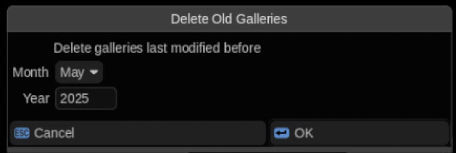
Delete Old Galleries
Delete old gallery scenes from the job database (based on modified date)
The processing can be very slow for large jobs, so work is done in the backgroud and managed via the Queue Monitor.
How To Use
Select Delete Old Galleries from under the main Baselight menu.
If you’re not using the default “baselight_gallery” job for your galleries, you’ll need to edit the script with your custom job name (matching your Preferences > Cuts View, Gallery and Scratchpad > Gallery Job setting).
Installation
Select Views > Scripts and on the Packages tab press “Install package file…”, then browse to your downloads and select filmlight_delete_old_galleries-1.0.0-py3-none-any.whl
How to Modify
Rather than using the package, you can install the files manually:
- DeleteOldGalleries_ui.py into /vol/.support/scripts/
- DeleteOldGalleries_server.py into /vol/.support/server-scripts/
You may have to create the folders if they don’t exist. Outside of the package, the objects will need to be initalized by adding a line to the bottom of each file:
- DeleteOldGalleries_ui.py
DOGUI()- DeleteOldGalleries_server.py
DOGServer()After making changes to the UI script you can just reload scripts in the Scripts View to pickup the changes. If you change the server script you’ll have to restart the flapi daemon with:
sudo fl-service flapi restart If you want to rebuild the package, run:
make-wheel.sh